Tabs overview
In the Bloom window, there are three tabs. Each tab has panes and a toolbar.
 Collections
-
Left pane:
Above the collection name, you see a statement with the number of books in the current collection and goal. Click it and then click View on BloomLibrary.org to open the collection there.
The name of the open collection has a down arrow ( ) with commands you can use.
Books or shell books in the collection are below the name.
Sources for new books or sources for new shells are at the bottom.
SHOW ANOTHER COLLECTION opens your file explorer so you can open an additional collection in this tab.
See: Collection tab commands.
-
Right pane:
Here is where you see the book or shell book that you clicked in the left pane.
You also see the  EDIT THIS BOOK button. Click it to open the Edit tab.
-
Toolbar:
The toolbar shows buttons that are used for collections.
-
Right pane (for Team Collections, after you click a book in the left pane):
Click PREVIEW to see the front cover of the book and the EDIT THIS BOOK button. Click that button to the Edit tab.
Click HISTORY to see the history of the book.
 Edit
Edit
-
Left pane:
This pane is called Pages. It shows all of the pages in the book. It distinguishes between inside pages and other pages with different colors.
Click a page to display it in the main pane.
The current page has a yellow border.
You can drag-and-drop pages to reorder them.
The Add Page button is at the bottom of this pane. See: Add a page.
A down arrow appears below newly added pages. It has commands you can use.
Some of the pages are discussed in Concepts.
-
Main pane:
Here is where you select pictures, and edit or translate words.
It has commands you can use.
-
Right pane:
The right pane can display tools in the Tool Box.
-
Toolbar:
The toolbar shows buttons that are used when you edit.
 Publish
-
Left pane:
Here are the controls options you can use.
-
Main and Right pane:
According to the option you choose in the left pane, you see the current book, and appropriate commands, instructions and hyperlinks for additional help.
-
Toolbar:
The toolbar has buttons for printing and saving.
Note
-
You can right-click the toolbar in any tab to see these options:
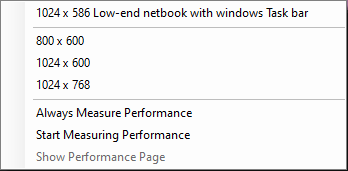
- Click a predefined size for the Bloom window.
- Select (
 ) Start Measure Performance if you want to measure Bloom performance and later see the results. This selection is cleared each time you close Bloom. You might want to get more help if you have performance issues.