Tool Box
In the  Edit tab, the tool box can appear vertically along the right edge of the window. It is called the "tool box" to distinguish it from the horizontal toolbars and because it can display a tab for each tool.
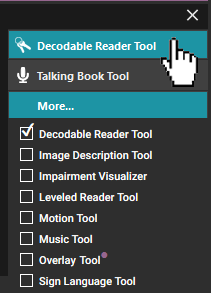 |
This sample shows tabs for two tools and the More... tab.
A tab changes color when
A colored symbol ( |
 ) indicates a
To make a tool available for use, do these steps:
-
If you do not see the tool box, click the
 button.
 -
Click the More tab.
-
Select (
 ) the check box for the desired tool.
A tab appears above the More tab for each selected () tool.
You can clear ( ) any check box to hide the tab for that tool.
Note
-
The
 Talking Book Tool tab does not have a check box.
 -
The
 Decodable Reader Tool check box is selected by default for books made from a Decodable Reader template.
 -
The
 Leveled Reader Tool check box is selected by default for books made from a Leveled Reader template.
-
The
 Sign Language Tool check box is selected by default for books made from the Sign Language template.
 -
See Game Tool overview to learn more about that tool.
-
Click
 to collapse (hide) the tool box.
This also hides features from tools that appear in pages, such as the rectangles used with the  Motion Tool and the colored backgrounds from flagged words.
-
You can choose a font size for words or letters that appear in tools.
In some languages, words or letters can be difficult to read in the tool box. This can be particularly true in the Decodable Reader Tool and related dialog boxes.
Related Topics
Show the Decodable Reader Tool
Show the Image Description Tool