Using the Hint Bubbles tab
You can only do this task in the Temple Starter template.
Bloom callout boxes and source text boxes can appear on many of the pages in your books. For inside pages, you can add additional words or sentences to them. Or, if callout boxes do not appear in your book, you can type words or sentences to appear as hint bubbles. These are to provide helpful information intended for the translator.
Then, do these steps.
-
Click the Hint Bubbles tab.
-
Click the language control and then click the language that will be used for the words you want to add or use in the hint bubble. Be aware that the hint bubbles display words in the language that matches the UI Language.
-
In the box that appears below the language control, type the words or sentences.
-
Show the hint bubble in one of these ways:
-
Choose Just once on the whole group if you want the hint box to appear once with the group of text boxes (set of texts boxes that express the same information in different languages).
-
Choose On each language-field in the group if you want the hint bubble to point to the fields individually.
In this case, type the hint with a {lang} in the appropriate place in the hint. Bloom will replace the {lang} portion with the language name that corresponds to the particular field. See Tip below.
-
-
Click outside of the dialog box to close it.
-
Click the end of the Change Layout control to hide the controls.
The hint bubble will appear in the language that matches the current User Interface language.
Tip
-
Hint bubbles display words in the language that matches the UI Language.
-
Example for On each language-field in the group:
Suppose a book is bilingual, English and French, and the User Interface language set to English. You could type a hint in English like this: Type the color in {lang}.
Bloom would present the hint like this:
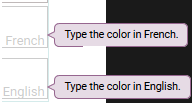
The language names you see are set when you Change or Set languages.
-
Unlike setting a style, this property is for the current text box only. It will persist if you use Duplicate Page. However, if you change it later in one of the pages, it will not change in any other pages.
-
These texts boxes are not the same as those you can add when you use the Canvas Tool.