Audio recording tips
To make high-quality audio recordings, here are a few things to consider.
Unwanted noise
-
Avoid using the microphone that is in a laptop.
Computer sounds, such as the fan, are often heard in the recording. The quality may not be acceptable. Use an external microphone instead.
-
The environment should be as quiet as possible. Wind is usually noisy, too.
-
Do not touch the microphone while recording.
Consistent Levels
-
The Taking Book Tool has an icon (discussed in
 Important below) and a level indicator.
Use the indicator to monitor the recording level.
It can look like this 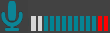 or like this
  .
.
Your computer has a control that sets the recording level of the microphone.
Adjust it, if necessary.
Practice to determine how many blue bars ( ) are best. White bars indicate the recording level it too low. Red means that it is too high.
Keep the microphone the same distance from the speaker's mouth.
Use the same microphone for each recording session.
The Play button ( ) in the Music Tool allows you to hear the relative volumes of the recorded audio and background music. You can adjust the volume of the background music. If the audio recording of the book is too soft, or over saturated (red bars), you need to record it again. If you use the Motion Tool, the Preview button also lets you hear any recorded audio and music.
Timing
-
The time between pressing the
 Speak button and when you start speaking should be consistent and brief.
Similarly, the time between finishing the last word and releasing the Speak button should also be consistent and brief.
Important
-
If you add or change the microphone or headset, your computer may or may not ask you what you just plugged in and require input from you. Either way, if you add or change devices while Bloom is open, Bloom will not be immediately aware of that new device.
To make Bloom aware, you can close and restart Bloom. Then it will use whatever the default audio device is for your computer.
Alternatively, click the icon that appears next to the recording level indicator.
Example: Suppose you had just plugged in a dedicated microphone in addition to a headset, if you click the icon you would see it change from  to
to  . This indicates that now Bloom will use the microphone to record instead of the one in the headset.